
Windsurf
Windsurf
Windsurf is Codeium's code editor designed for AI-assisted development.
Follow this guide to use Windsurf to access your Coder workspaces.
If your team uses Windsurf regularly, ask your Coder administrator to add Windsurf as a workspace application in your template.
Install Windsurf
Windsurf can connect to your Coder workspaces via SSH:
-
Install Windsurf on your local machine.
-
Open Windsurf and select Get started.
Import your settings from another IDE, or select Start fresh.
-
Complete the setup flow and log in or create a Codeium account if you don't have one already.
Install the Coder extension
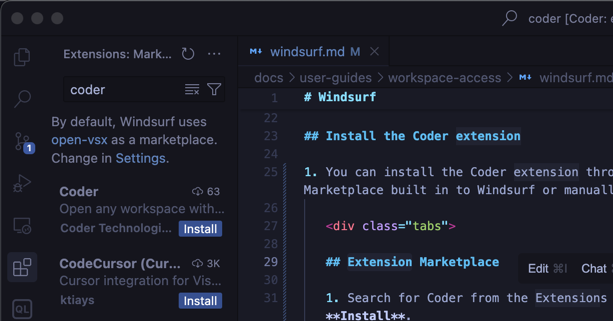
-
You can install the Coder extension through the Marketplace built in to Windsurf or manually.
Extension Marketplace
- Search for Coder from the Extensions Pane and select Install.
Manually
-
Download the latest vscode-coder extension
.vsixfile. -
Drag the
.vsixfile into the extensions pane of Windsurf.Alternatively:
-
Open the Command Palette (Ctrl+Shift+P or Cmd+Shift+P) and search for
vsix. -
Select Extensions: Install from VSIX and select the vscode-coder extension you downloaded.
-
Open a workspace in Windsurf
-
From the Windsurf Command Palette (Ctrl+Shift+P or Cmd+Shift+P), enter
coderand select Coder: Login. -
Follow the prompts to login and copy your session token.
Paste the session token in the Coder API Key dialogue in Windsurf.
-
Windsurf prompts you to open a workspace, or you can use the Command Palette to run Coder: Open Workspace.